
The Task
A couple of weeks ago a customer of mine asked if there is a way to monitor expiring Active Directory User account passwords, using System Center Operations Manager. Since I have not done this with SCOM so far, I did some research to see what is out there. As you know the SCOM community is vast and powerful, so I thought that this has already been covered. And I was right! Anders Bengtsson has posted a script, which could be used to accomplish the goal. There was a challenge though. The script was a VBScript, written in 2008 and I must admit that although I have some experience with scripting, I found it challenging to adjust it to my particular needs. Here is a reference to his blog posts and the script in question:
Check passwords about to expire
http://contoso.se/blog/?p=232
The script
http://www.contoso.se/files/AD-Account-expire.vbs
Even if you a good at Visual Basic and can adjust the script logic to your needs, you still need to create a monitor in SCOM, using the script.
So, instead of adjusting the VBScript of Anders to my needs, I decided to create my own solution, following a more let’s call it “modern” approach by using PowerShell. PowerShell gives me a certain level of “freedom”, more confidence and allows me to control the whole logic of the solution in a more flexible way.
Prerequisites
So, it was decided – my solution would be based on PowerShell and a PowerShell based monitor in SCOM. The first thing I needed was the PowerShell Authoring Management Pack by Cookdown. To get it, you only need to register on the Cookdown’s web site and you will get the download link to the MP right away. The very cool thing about it is that the management pack is completely free. Here is a link to the download page:
PowerShell Authoring
https://www.cookdown.com/scom-essentials/powershell-authoring
After you import this management pack, you will be presented with additional monitor options in the Authoring pane, that look like this:
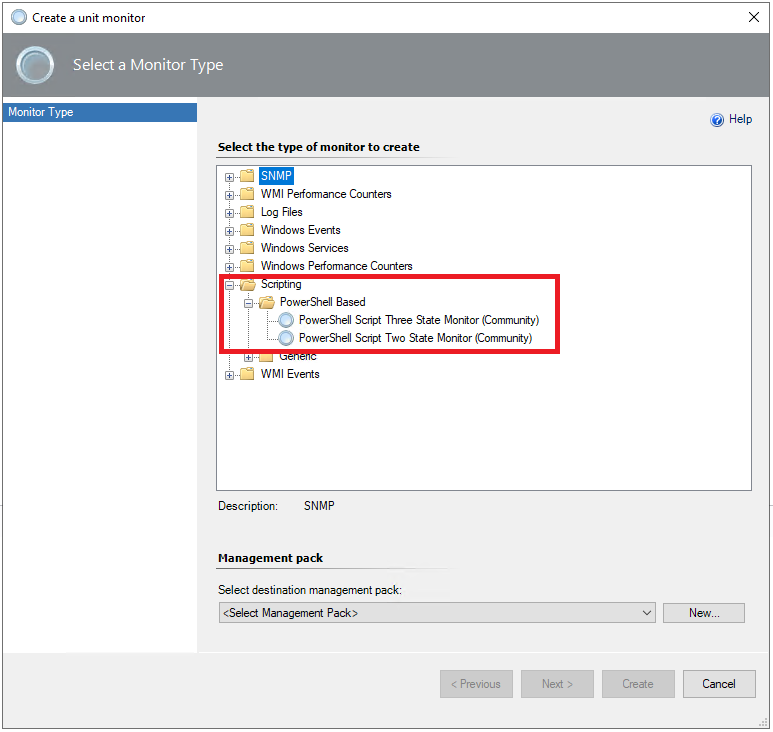
PowerShell Authoring Options
If you would like to learn more about the management pack and how it works, you can watch the video, found on the management pack download page. Besides an explanation of the MP functionalities, you will also be presented with a real life, detailed use case.
The next building block is the PowerShell script, that needs to be configured within the monitor. The script logic is very simple and in addition to this, I have tried to put a short explanation, which could help you better understand it.
The script can be downloaded from my Github repository here:
SCOM.MonitorPasswordExpiration
https://github.com/StoyanChalakov/SCOM.MonitorPasswordExpiration
Before we go ahead and depict how the monitor in SCOM can be configured, let’s mention one more prerequisite – the Active Directory PowerShell module. It needs to be installed on the server, which will run the script, mainly because the script contains the “Get-ADGroupMember” and “Get-ADUser” cmdlets. In my case I have installed it on my management server since I am using it to execute the script.
Testing and Troubleshooting
let’s say a couple of words about testing. When testing your script, you will have to check the values stored in the $PropertyBag. This is usually done by using the Return() method on the $ScomAPI object:
$ScomAPI.Return($PropertyBag)
There is specific here though, that plays a key role during testing – the tool you are testing with. The first time I did tests, I used the PowerShell ISE (ISE stands for Integrated Scripting Environment) console to check the script output and the values in the $PropertyBag in particular. To my surprise I always got the same error, which I could not get past by:
[powershell]
The handle is invalid. (Exception from HRESULT: 0x80070006 (E_HANDLE))
At line:103 char:7
+ $ScomAPI.Return($PropertyBag)
+ ~~~~~~~~~~~~~~~~~~~~~~~~~~~~~
+ CategoryInfo : OperationStopped: (:) [], COMException
+ FullyQualifiedErrorId : System.Runtime.InteropServices.COMException
[/powershell]
And after some digging I came across a post on the old Microsoft Social Technet platform, where this same problem has been discussed. Here is the link:
Property Bag not returning variable data.
https://social.technet.microsoft.com/Forums/lync/en-US/0aed6e41-43c8-4eed-903f-88fbe33d4a6c/property-bag-not-returning-variable-data?forum=operationsmanagerauthoring
There, amongst the many replies was a suggestion by user, called “GTrevize” (Thank You):
“Just in case your problem still exists: try to execute the script from a PowerShell window, rather than from the ISE. This way you won’t get the PowerShell exception above.”
And sure enough, GTrevize was right. After I used the PowerShell console to do the test, it successfully returned the property bag:

Sucessfull Test Result
This is how the test output looked like:
<DataItem type="System.PropertyBagData" time="2022-01-17T14:24:21.1270934+01:00" sourceHealthServiceId="AB67114C-22A7-F08F-CBAC-6C4086296A05"><Property Name="WarnUserCount" VariantType="8">1</Property><Property Name="State" VariantType="8">Warning</Property><Property Name="ExpiredUsers" VariantType="8">STAdmin</Property></DataItem>
Monitor Configuration
Here is also a short guide on how to configure the monitor in SCOM.
- Start by navigating to the “Authoring” pane, select the option “Create a Monitor” and then “Unit Monitor”. In the windows that is displayed, you will have to expand “Scripting” and then select the “PowerShell Script Two State Monitor (Community)”:
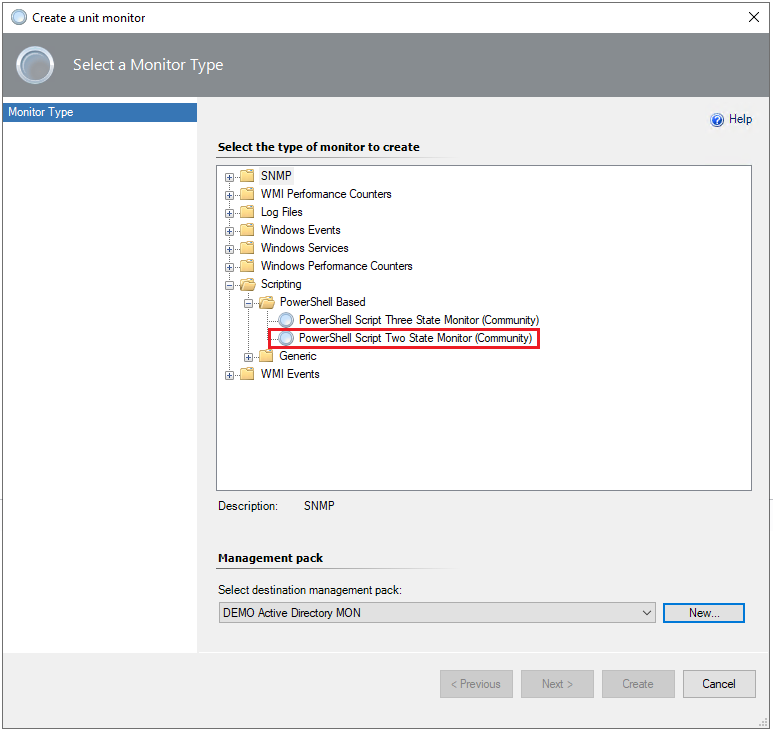
Monitor Configuration
- The next step would be to select a management pack to store the configuration. In my case this is the “DEMO Active Directory MON” Management Pack.
- Give your monitor a meaningful name (stick to your naming convention, it makes searching for the monitor a lot easier) and select a target for the monitor (the class “Management Server” in this example). Please note that the monitor in the example is not enabled by default, but it is going to be overridden for a particular management server afterwards:
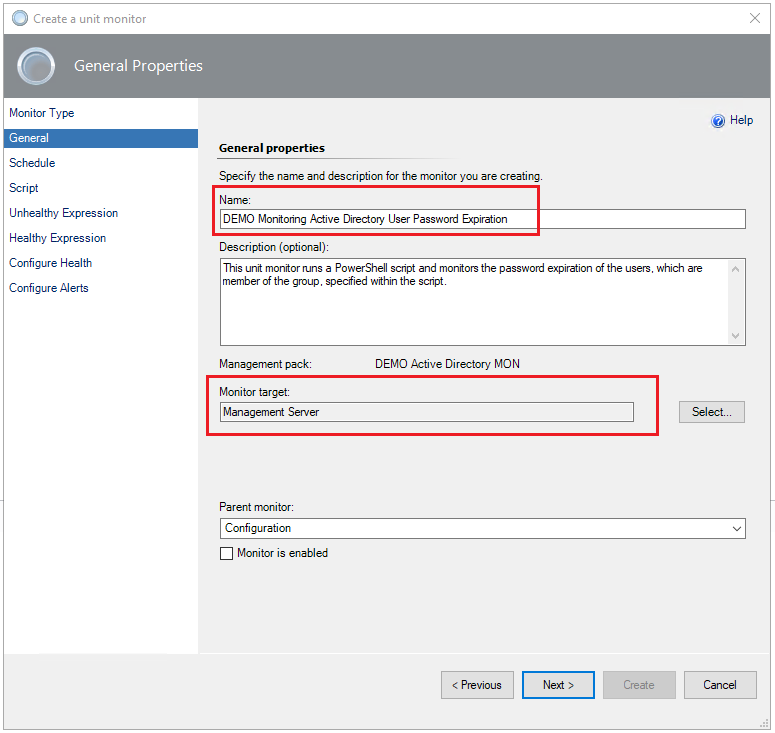
Monitor Name and Target
- Next, you will have to configure a schedule for the monitor. In my particular case the script is going to be run once per day, but you can decide according to your organizational needs and/or requirements.
- On the next configuration page, you can enter a name for your script and configure a timeout. The script we are working with usually completes within seconds even if you query a group with large number of users, like “Domain Users” for example. Still, I would recommend to test it thoroughly before configuring it in SCOM.
- As next you will have to paste your script in the “Script” field. Before doing this, please make sure that the line, used for testing has been commented out and the $PropertyBag variable is being returned at the end (highlighted on the screenshot):
[powershell]
#Send the whole output to SCOM
$PropertyBag
#Used for testing
#$ScomAPI.Return($PropertyBag)
[/powershell]
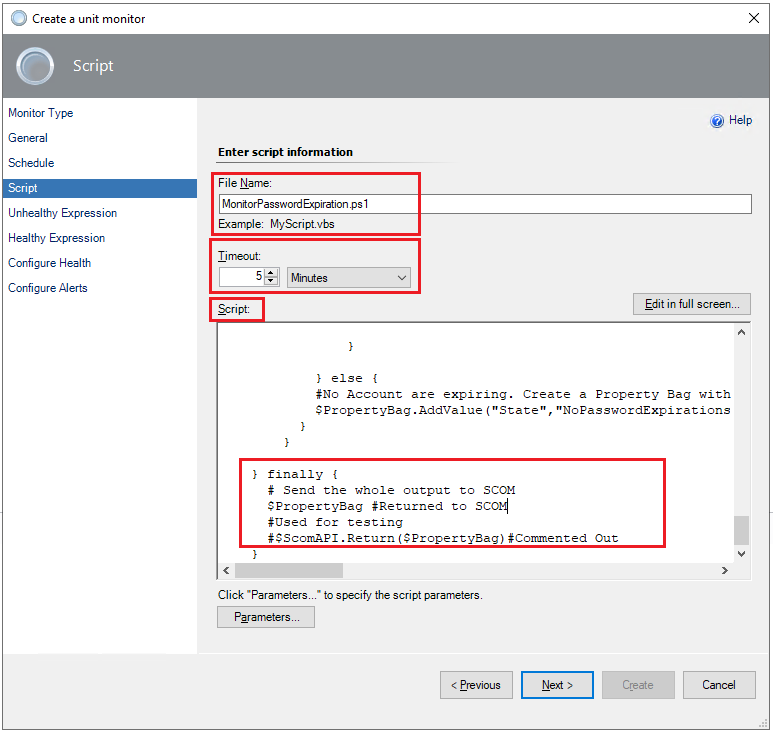
Monitor Script Settings
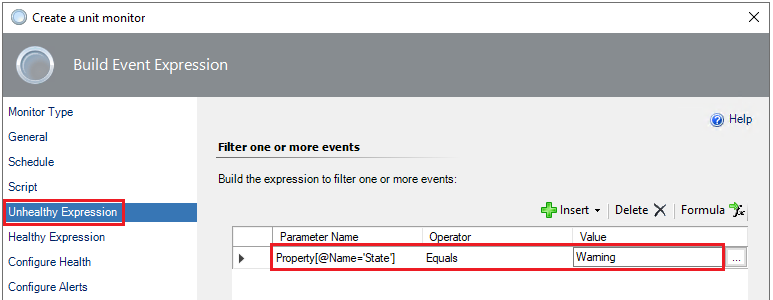
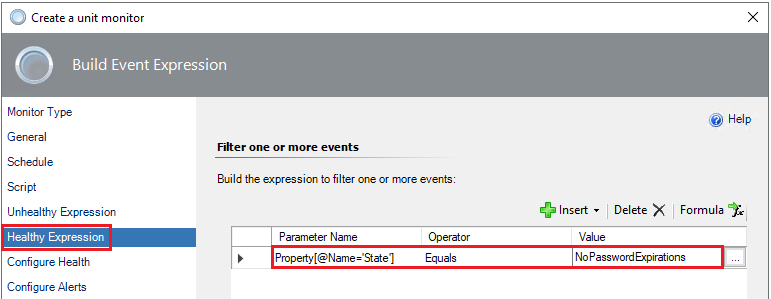
- The next step is to configure the Healthy and Unhealthy Expressions for your monitor. The important part here are the names of the different property bags, configured in the script. The important part here is this section of the script, which defines the property bags in both cases – when there are expiring passwords (Unhealthy) and also when no expiring passwords are reported:
[powershell]
if ($WarnUserCount -gt 0) {
[string]$Users = $WarnUsers | Out-String
#Create and fill the case specific Property Bags
$PropertyBag.AddValue("WarnUserCount","$WarnUserCount")
$PropertyBag.AddValue("State","Warning")
$PropertyBag.AddValue("ExpiredUsers",$Users)
} else {
#No Account are expiring. Create a Property Bag with a zero count
$PropertyBag.AddValue("State","NoPasswordExpirations")}
[/powershell]
So if the script has found more than one user, whose password is about to expire, we are going to have three property bags – “WarnUserCount”,”State” and “ExpiredUsers” with their respective values – $WarnUserCount, “Warning” and $Users. When configuring the Healthy and Unhealthy expression we will refer to those:
Healthy Expression
Unhealthy Expression
- On the following configuration page you can chose the State of your monitor depending on the conditions:
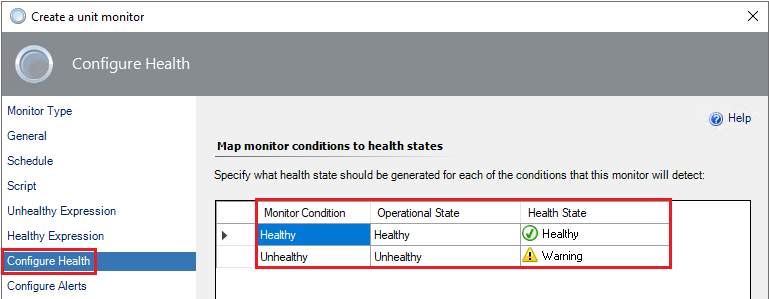
Configure Health
- The next steps would be configuring the alert properties. The interesting thing here is that you can use the additional property bags from the script to enrich the content of your alerts. In this example I have added the following additional properties:
$Data/Context/Property[@Name=’WarnUserCount‘]$
$Data/Context/Property[@Name=’ExpiredUsers‘]$
- Last, but not least we need to enable the monitor, by creating an override. As already mentioned the workflow will be run by my management server, hence the override for SCOM01.demo.local:
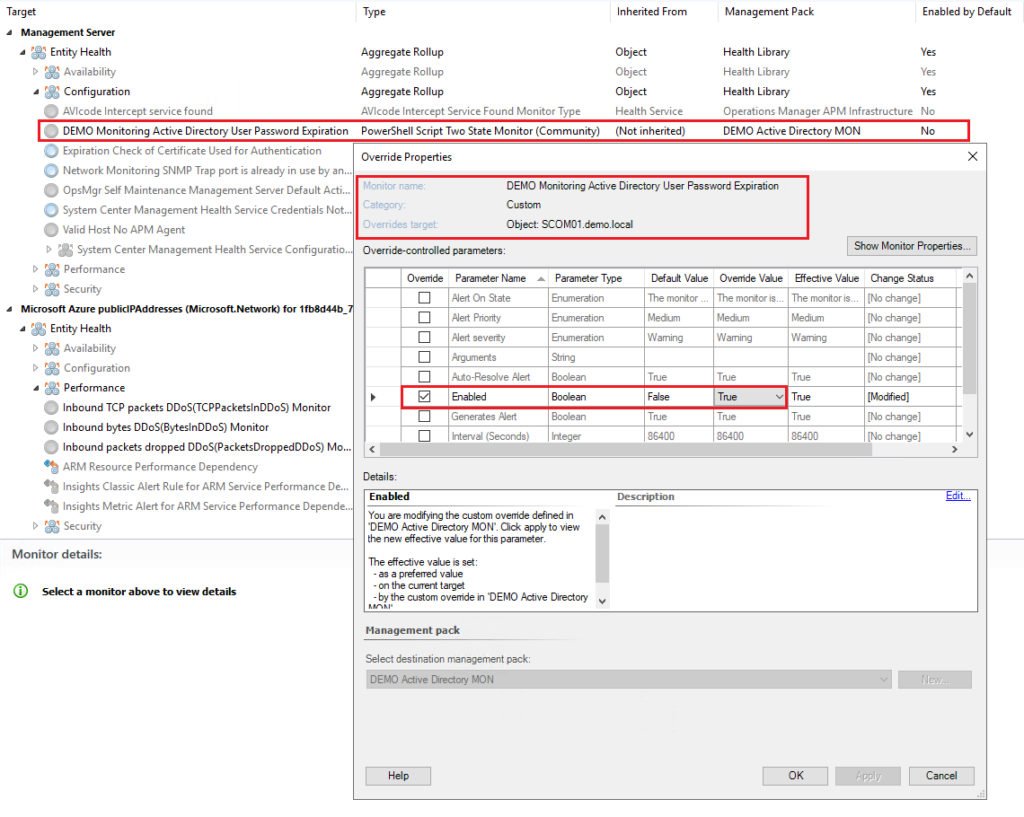
Monitor Override
Some important Notes (Thanks to Graham Davies for pointing those out)
- Workflow targeting, high availability and performance
Targeting the monitor at the “Management Server” class and overriding it for this instance (see the screenshot above) means that in my case the script will be executed by a SCOM management server (SCOM01.demo.local). You can select another target for the monitor (“Windows Server 2016 and above Computer” for example) and override it for a particular instance of that class.
This approach has one downside – the script is not highly available. If you have a lot of those running and you have to make them highly available, please consider authoring a management pack, which leverages the script and targeting your workflow at resource pool.
If you still decide to run the script on a management server, make sure you have tested it first and also avoid querying large Active Directory environments, which might cause a performance problem.
- Run As Account
In my example, executing the PowerShell script from a SCOM Management Server automatically means that it is using Management Server Action Account. If you decide to execute the script on a dedicated server, which is not a SCOM Management Server, then you might need to consider a dedicated Run As Account for that. You can do this even if your are running it on your Management Server, if for some reason you don’t want the script to be executed by the SCOM Management Server Action Account.
- Logging
The other thing you might want to do, is to use some kind of logging function within the script and log the individual steps or write an event to indicate a successful execution or a failure. This will help you a lot in case you stumble on problems and need to do some troubleshooting.
- Consider also creating a rule instead of a monitor
The downside of using a monitor is that its health rolls up to the Management Server executing the script and you might want to avoid the Management Server being listed as unhealthy just because a windows user account is due to expire in the next few weeks or days.
Result
After waiting for a couple of minutes, here is how the expected result should look like.
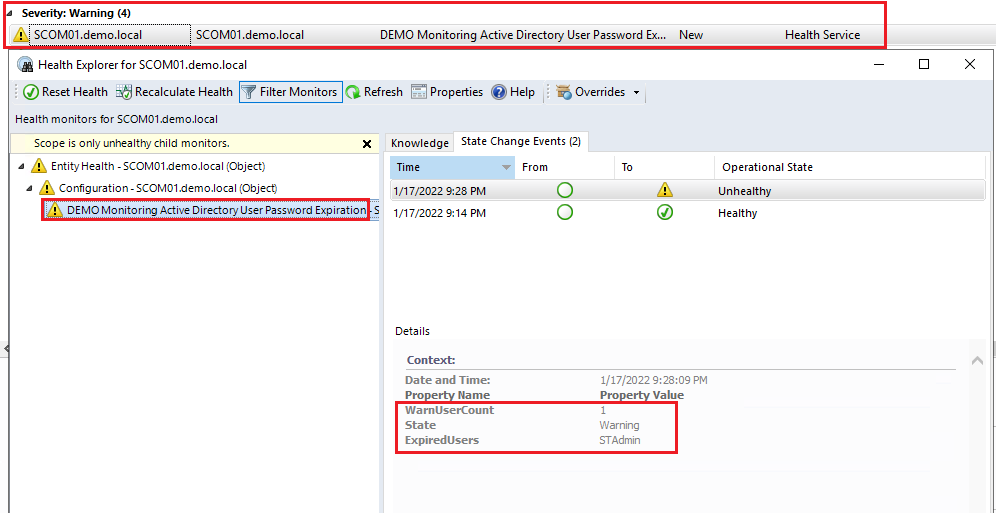
Alert Properties
The cool thing about this alerts are the additional properties (besides the State) we were able to retrieve – “WarnUserCount” and also “ExpiredUsers”, which could be very helpful in quickly identifying the users with expiring passwords.
Conclusion
This is a very robust and easy to implement, but at the same time powerful solution, which allows you to monitor your domain users for expiring passwords. The script in question can be adjusted to your specific needs, not to query a specific Active Directory group, but an Organizational Unit (OU) in your Active Directory domain instead.