
Table of Contents
- Introduction
- Environment & context
- Symptom (Setup fails, rollback)
- Setup log excerpts
- Why this happens (CLR strict security + Trusted Assemblies)
- Repro (high level)
- The fix (idempotent trust logic)
- Step-by-step: verify & remediate
- Optional: robust T-SQL (idempotent, AG-friendly)
- Notes for AlwaysOn/AG environments
- FAQ
- References
- Update for SCOM 2025
Introduction
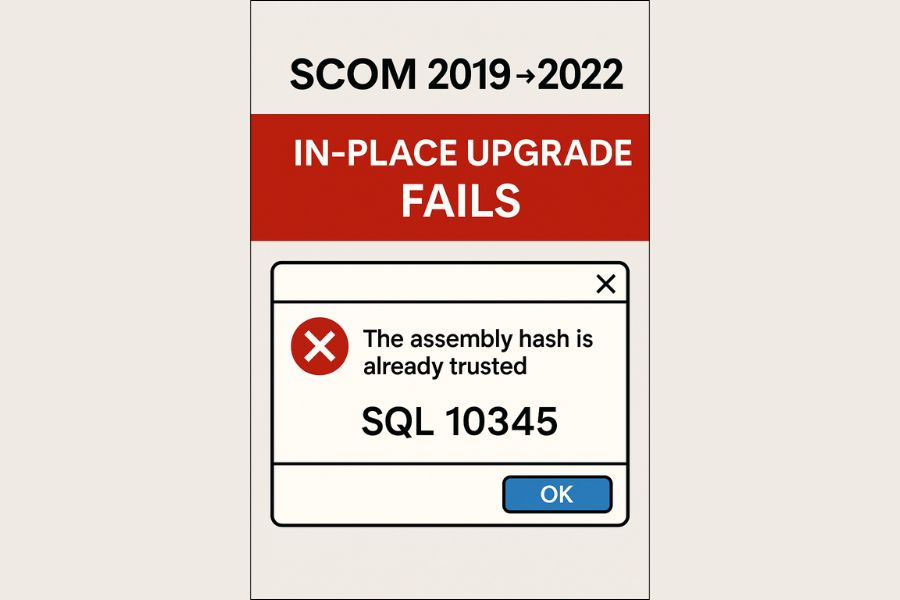
Upgrading a well-hardened SCOM environment should be smooth and uneventful, but sometimes a small edge case can turn it into a headache. That’s what happened during an in-place upgrade from SCOM 2019 to SCOM 2022: the Install Wizard hit an odd failure, complaining that an assembly hash “is already trusted” with SQL error 10345, and promptly rolled back. This issue crops up in environments where SCOM’s SQL CLR assemblies were pre-trusted—a standard best practice on SQL Server 2017+ to handle clr strict security and avoid console crashes after database failovers. The wizard doesn’t recognize „already trusted“ as a success state and bails out. In this post, I’ll break down the root cause, show you the telltale signs in the logs, and share a straightforward workaround to keep your upgrade on track without the drama.
Environment & context
- SCOM: In-place upgrade from 2019 to 2022 using the SCOM 2022 Install Wizard
- SQL: SQL Server 2019 with clr strict security enabled by default
- DBs: Existing OperationsManager (and Data Warehouse) databases—not a fresh install
- Typical topology: AlwaysOn Availability Groups (AG) or failover clusters, where assemblies were pre-trusted to prevent console failures post-failover
Symptom (Setup fails, rollback)
The upgrade stalls during the database phase and initiates a rollback. The error highlights a duplicate trust attempt for a CLR assembly hash, leaving your management group potentially inconsistent if not caught early. It’s a frustrating halt, but reversible with backups.
Setup log excerpts
From OpsMgrSetupWizard.log (key snippets):
 [10:22:57]: Info: :Done loading DB scripts

[10:22:57]: Error: :DB operations failed with SQL error 10345: The assembly hash '0xEC312664052DE020D0F9631110AFB4DCDF14F477293E1C5DE8C42D3265F543C92FCF8BC1648FC28E9A0731B3E491BCF1D4A8EB838ED9F0B24AE19057BDDBF6EC' is already trusted.

: Threw Exception.Type: System.Data.SqlClient.SqlException, Exception Error Code: 0x80131904, Exception.Message: The assembly hash '0xEC312664052DE020D0F9631110AFB4DCDF14F477293E1C5DE8C42D3265F543C92FCF8BC1648FC28E9A0731B3E491BCF1D4A8EB838ED9F0B24AE19057BDDBF6EC' is already trusted.

...

[10:22:57]: Error: :Error:Failed to execute sql command. Setup will not retry on this Sql error.

[10:22:57]: Error: :Sql error: 16. Error: 10345. Error Message: The assembly hash '0x...F6EC' is already trusted.

[10:22:57]: Error: :Exception running sql string
Why this happens (CLR strict security + Trusted Assemblies)
Under the hood, it’s a collision between SQL’s security hardening and the installer’s assumptions. Since SQL Server 2019, clr strict security treats even SAFE or EXTERNAL_ACCESS assemblies as UNSAFE unless explicitly allowed—either by signing them or adding them to the server-level trusted assemblies list via sys.sp_add_trusted_assembly. This is a deliberate design to bolster CLR security.
SCOM relies on CLR assemblies like Microsoft.EnterpriseManagement.Sql.DataAccessLayer and Microsoft.EnterpriseManagement.Sql.UserDefinedDataType, which are often pre-trusted in AG setups to sidestep console errors (e.g., Events 10314, 10327, 26319) after failovers. During the upgrade, the wizard attempts to add these trusts anew. If the exact hashes already exist in sys.trusted_assemblies, SQL throws error 10345 („already trusted“). Rather than skipping as a no-op, the setup treats it as fatal and rolls back. It’s understandable for fresh installs, but it breaks idempotency in real-world upgrades.
Repro (high level)
- Start with a SCOM 2019 setup on SQL 2019, with assemblies already trusted (common in AG or failover scenarios).
- Launch the SCOM 2022 in-place upgrade wizard.
- The setup reaches the DB/CLR step, tries sp_add_trusted_assembly on duplicates, hits 10345, and rolls back.
The Solution
Ideally, the installer should check sys.trusted_assemblies first and skip (or handle 10345 as non-fatal) if trusts exist. Until that’s patched, the pragmatic fix is to temporarily remove the trusts before upgrading. This lets the wizard add them itself without conflict.
Step-by-step: verify & remediate
- Backup your databases and management servers—always!
- On the SQL instance hosting OperationsManager (server-level context), verify existing trusts:
SELECT * FROM sys.trusted_assemblies;
1. Drop the relevant SCOM hashes (adjust if yours differ based on builds):
 EXEC sys.sp_drop_trusted_assembly 0xEC312664052DE020D0F9631110AFB4DCDF14F477293E1C5DE8C42D3265F543C92FCF8BC1648FC28E9A0731B3E491BCF1D4A8EB838ED9F0B24AE19057BDDBF6EC;

EXEC sys.sp_drop_trusted_assembly 0xFAC2A8ECA2BE6AD46FBB6EDFB53321240F4D98D199A5A28B4EB3BAD412BEC849B99018D9207CEA045D186CF67B8D06507EA33BFBF9A7A132DC0BB1D756F4F491;
4. Run the SCOM 2022 upgrade wizard—it should now add the trusts successfully.
5. Post-upgrade, re-verify trusts are in place:
SELECT * FROM sys.trusted_assemblies;
6. If the upgrade fails anyway, restore from backups to revert.
Optional: robust T-SQL (idempotent, AG-friendly)
For a scriptable approach, use this T-SQL to make trust operations idempotent—drop if exists, then add:
 DECLARE @Hash VARBINARY(64) = 0xEC312664052DE020D0F9631110AFB4DCDF14F477293E1C5DE8C42D3265F543C92FCF8BC1648FC28E9A0731B3E491BCF1D4A8EB838ED9F0B24AE19057BDDBF6EC;

DECLARE @ClrName NVARCHAR(128) = N'Microsoft.EnterpriseManagement.Sql.UserDefinedDataType';

IF EXISTS (SELECT * FROM sys.trusted_assemblies WHERE hash = @Hash)

EXEC sys.sp_drop_trusted_assembly @Hash;

EXEC sys.sp_add_trusted_assembly @Hash, @ClrName;

-- Repeat for other hashes/CLR names as needed.
Notes for AlwaysOn/AG environments
- Trusted assemblies are server-level, so run drops/adds on all replicas—each maintains its own list.
- Avoid TRUSTWORTHY ON for databases; it’s a security risk. Stick to trusted assemblies or signing.
- Post-failover console issues? Double-check clr enabled, clr strict security settings, and trusts on the new primary.
FAQ
Q: Which SQL versions are affected?
A: SQL Server 2017+ (2019/2022 included) and Azure SQL MI where clr strict security is default and sp_add_trusted_assembly is available. Older SQL lacks this feature.
Q: Should I disable clr strict security?
A: No—keep it on for security. Use trusted assemblies or signing instead.
Q: Can I use TRUSTWORTHY ON as a workaround?
A: It might „fix“ things short-term, but it’s discouraged. Trusted assemblies are the modern, secure path.
Q: What if I skip the drop and the upgrade fails?
A: Rollback leaves the management server partially upgraded, risking inconsistency. Restore from backups and retry with the workaround.
References
- Microsoft Docs — CLR strict security (SQL 2017+ default, treats SAFE/EXTERNAL_ACCESS as UNSAFE): https://learn.microsoft.com/en-us/sql/database-engine/configure-windows/clr-strict-security
- Microsoft Docs — sys.sp_add_trusted_assembly (Adds to sys.trusted_assemblies; SQL 2017+ / Azure SQL MI): https://learn.microsoft.com/en-us/sql/relational-databases/system-stored-procedures/sys-sp-add-trusted-assembly-transact-sql
- Microsoft Q&A — SCOM DB Failover (console fails post-AG failover until trusted): https://learn.microsoft.com/en-us/answers/questions/1020726/scom-db-failover
- Archived TechNet — Could not load UserDefinedDataType (AG failover; 10327/10314; trusted fix + Service Broker): https://learn.microsoft.com/en-us/archive/msdn-technet-forums/195c0bd5-115c-4cff-8ae3-4109f59c9b1e
- Blake Drumm — Event 26319: Assembly Trust Issues (SCOM resolution steps): https://blakedrumm.com/blog/event-26319-assembly-trust-issues/
- Kevin Holman — Upgrade from SCOM 2019 to 2022 Checklist (mentions this error and drop workaround): https://kevinholman.com/2022/09/27/upgrade-from-scom-2019-to-scom-2022-checklist/
- SQL Skills / SQL Quantum Leap — Trusted Assemblies and CLR strict security background.
Update for SCOM 2025
As of September 2025, SCOM 2025 (released November 2024) supports in-place upgrades from SCOM 2022. While this specific issue isn’t highlighted in official docs or recent reports, it could potentially arise in similar SQL 2017+ setups. Microsoft’s SQL upgrade scripts for SCOM now use idempotent logic (drop if exists, then add), suggesting improvements. Test upgrades in a lab, and apply the workaround if needed. Check latest Microsoft Learn for updates.