
A short intro on this blog series
Over the past few months, I’ve been quite occupied, but I’ve come to realize something essential—I haven’t written an article in well over a year. The primary reason behind this break was my pursuit of inspiration to create something genuinely beneficial and valuable for the community, which isn’t currently out there (at the time of writing), or at least not in the form I imagine.
Being actively involved in the SCOM community has taught me that, due to the maturity of the product, as is often the case, there’s an abundance of information out there. Many topics have already been extensively covered.
To be honest, every time I write an article, my goal is to offer information that isn’t readily accessible through a simple search and I aim to provide insights that are typically hard to come by.
A few days ago, while doing some SCOM troubleshooting, I had a sudden inspiration—it would be incredible to have a comprehensive troubleshooting guide for these components, consolidating all the necessary information in one place.
So, I did some research, and what I discovered was- there are already many helpful articles regarding troubleshooting System Center Operations Manager. However, they were scattered and lacked a cohesive structure for users to navigate effortlessly. So, I decided to create one.
This realization motivated me to embark on a new blog series, one dedicated to troubleshooting System Center Operations Manager. This series will cater to all SCOM users and administrators. In these articles, I aim to introduce various approaches, methods, and tools for troubleshooting the various components of System Center Operations Manager.
Behind this blog series lies also hidden motivation. I was previously a part of the Microsoft Professional Support for the Server Platform team, and troubleshooting is something I’m passionate about—something I continue to do. This passion is what ultimately propelled me to create this particular blog series.
Part 1: Troubleshooting the Windows SCOM Agent
This first part of the blog series will concentrate on troubleshooting the Windows SCOM agent and I will try to review all the methods and different troubleshooting techniques that are out there. And of course, if I have missed something, please do not hesitate to write me back or give me some tips on how I could make this article even more detailed.
1. Windows Event Logs, Operations Manager
No matter what kind of problem with the SCOM agent you are experiencing or what kind of behavior you are troubleshooting, the very, first place to look for some clues or details which might help you find the cause of the problem would be the Windows Event logs, and in particular the Operations Manager event log, which is located under application and services logs:
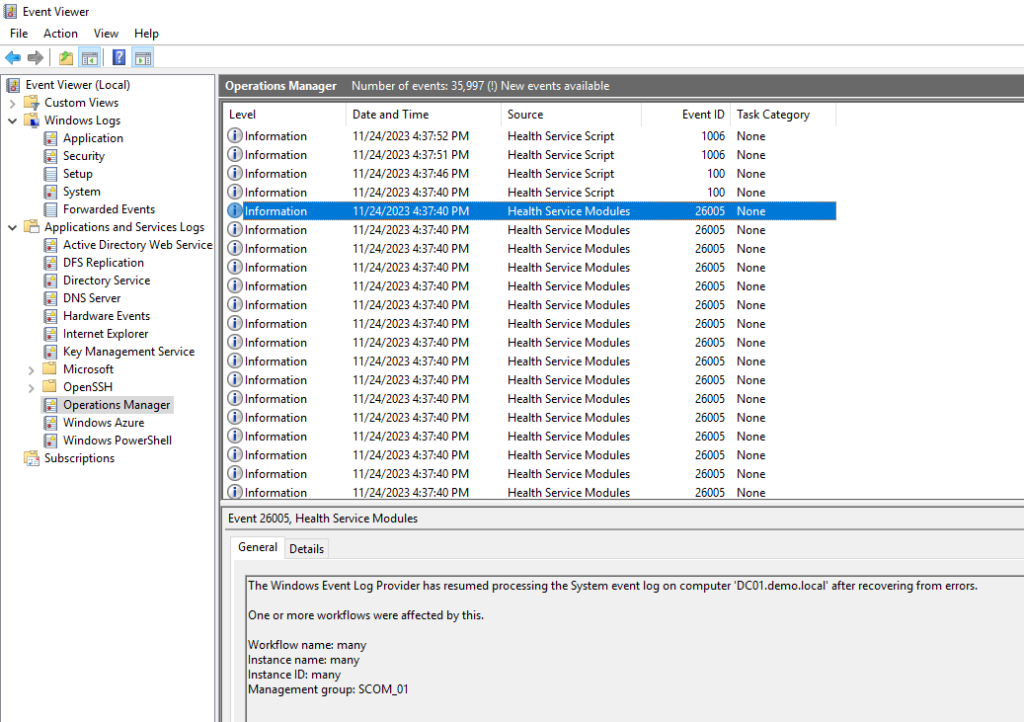
The System Center Operations Manager agent is very „talkative“ and logs extensively by default, so in almost all cases you find helpful troubleshooting information there. Of course, you need to be familiar with event log filtering and searching, in order to be more effective.
The event logs are the very first place I check when I need to troubleshoot problems or find any additional information related to the agent as it is highly likely that you will find events related to the cause of the problem you are troubleshooting.
2. The SCOM console and the different views and admin panes
There are also a number of views in the SCOM console, which you might want to check if you are troubleshooting an agent, which is already a part of your SCOM management group. Let us shortly list those and see how they can be of help when troubleshooting a SCOM agent:
- Active Alerts View
The first thing you can quickly check is if there are any open alerts related to the agent you are troubleshooting. You can do this simply by navigating to the „Active Alerts“ view and enter the FQDN of the agent in the search field:
- „Operations Manager -> Agent Details“
The “ Agent Details“ view, located under „Operations Manager“ contains a couple of useful alert, event, and state views:
- Active Alerts – Active Alerts from the Health Service and the Health Service Watcher of every agent
- Agent Evens – This view contains all the events, related to the Windows SCOM agents (Health Service).
- Agent Health State – This view contains two sub-views, one showing the Health Service status (same as the „Agent Managed“ view under „Administration“ -> „Device Management“) and one related to Health Service Watcher perspective of each individual agent.
- Agent Performance – this view contains different Performance Counters, related to the SCOM agents like „Agent Processor Utilization“, „Workflow Count“, „Module Count“ and „Send Queue % Used“.
- Agents by Version – This view shows the Entity Health Rollup Monitor state for each agent in your management group. This means that in case an agent has an issue, this view will show a different Status than „Healthy“ for the affected agent.
- Kevin Holman’s SCOM Management MP
Kevin’s „SCOM Management“ MP is an integral part of each SCOM Management Group I build or operate. There are so many advantages to using this management pack starting with all the administrative tasks, related to the administration of your SCOM agents and management servers and getting to all the extended agent views, which contain vital information regarding your Windows SCOM agents. As per Kevin Holman:
„This is a Management Pack that eases the administrative burdens in SCOM. It allows you to have a lot of handy discovered properties and includes tasks that allow you to delegate administrative actions to your users. It also serves as a good example MP on how to write classes, discoveries, and most importantly many task examples for command line, VBscript, and PowerShell.“
I don’t need to further explain its benefits, you can read Kevin’s blog on his MP here:
SCOM Management – MP – Making a SCOM Admin’s life a little easier
https://kevinholman.com/2017/05/09/scom-management-mp-making-a-scom-admins-life-a-little-easier/
3. Verbose Agent Logging
The verbose SCOM agent Logging (also called ETL trace) is a troubleshooting technique, which I use always when the above mentioned couldn’t help me identify the cause of the particular issue with the agent. There is a very detailed article, written by Cengiz Kuskaya, which I will recommend reading, as he covers all the important information regarding SCOM ETL Tracing:
- How to collect a SCOM ETL Trace on a SCOM Agent?
- Which Tools are used to analyze a SCOM ETL Trace?
- Which ETL Trace files should be analyzed after doing the tracing?
- What to look for when analyzing an ETL Trace?
Here is the link to the detailed blog post, which describes all the details:
How to collect and analyze a SCOM (System Center Operation Manager) ETL Trace in depth. Version Independent
http://www.kuskaya.info/2019/05/01/how-to-collect-and-analyze-a-scom-system-center-operation-manager-etl-trace-in-depth-version-independent/
4. Workflow analyzer (WFAnalyzer)
What is the Workflow Analyzer and how can it help us when troubleshooting issues with a SCOM Agent. I think Microsoft answers this question in the best way possible on the download page of the „SCOM MP Tools“, which contains also the WFAnalyzer:
„Workflow Analyzer (WFAnalyzer) was developed to view how a workflow passes data between the modules. This tool is very useful as it helps in quickly troubleshooting and determining the issues in a workflow and hence helping decide what to change in a management pack to get a workflow working. WFAnalyzer allows you to understand data flow within a workflow and read through traces produced by each module in a workflow, it also allows the user to do quicker troubleshooting of custom workflows in a live environment.“
You can download the tool here:
SCOM MP Tools
https://www.microsoft.com/en-us/download/details.aspx?id=102671
It comes with a „System Center WFAnalyzer Documentation.docx„, which contains detailed information and screenshots, which will help you use the tool properly:
- Overview
- Analyzing Workflows on a Management Server
- Analyzing Workflows on an Agent
- Analyzing Historical Data
- Starting Workflow Trace Sessions
- Troubleshooting not running, unloaded or failed workflows
5. PowerShell-based Workflow Tracing
The next troubleshooting option that I would like to present to you also helps you troubleshooting SCOM workflows on an agent, but is a PowerShell based one. It has been developed by Tyson Paul, who is one of the guys, behind the „The Monitoring Guys“ blog (and also part of Microsoft which I personally find one of the coolest and most helpful SCOM related blogs out there.
https://monitoringguys.com/2020/12/15/tracing-scom-workflows-with-powershell/
In this blog posts Tyson explains in Detail how you can use the available PowerShell snippet (Start-SCOMTrace) to trace workflows on your SCOM agent.
He also mentions the „Workflow Analyzer“ we covered here previously.
Common Issues and How to troubleshoot those
Now that we have reviewed the different troubleshooting options regarding the SCOM agent, let us briefly cover the most frequent issues you might face while working with the SCOM Windows Agent and the best troubleshooting approach in each scenario.
- SCOM Windows Agent Cache
On certain occasions, such as server freezes or crashes, issues with kernel mode filter drivers, or open handles on files, the local agent cache may become corrupted.
When troubleshooting challenges with the SCOM Windows agent, you may receive recommendations to „re-initialize“ or „clear“ the cache. Clearing the cache and rebooting the agent can often resolve workflow or communication issues between the agent on a client server and the management group. This widely adopted troubleshooting step is effective in resolving various cache-related issues.
Here is how to do that manually:
- Stop the Microsoft Monitoring Agent service (Services.msc).
- Check the Microsoft Monitoring Agent service status and ensure it is „Stopped“.
- Rename (or delete) the existing „Health Service State“ folder, which is located under “ X:\Program Files\Microsoft Monitoring Agent\Agent„
- Start the Microsoft Monitoring Agent service again.
- Check the Microsoft Monitoring Agent service status and ensure it is „Running“.
- Remove the old „Health Service State“ folder (in case you have renamed it).
Of course, like almost every SCOM-related operation, this one can be easily automated using PowerShell. For a comprehensive reference of all PowerShell cmdlets, you can consult:
Operations Manager PowerShell reference
https://learn.microsoft.com/en-us/powershell/module/operationsmanager/?view=systemcenter-ps-2022
- SCOM Windows Agent Service
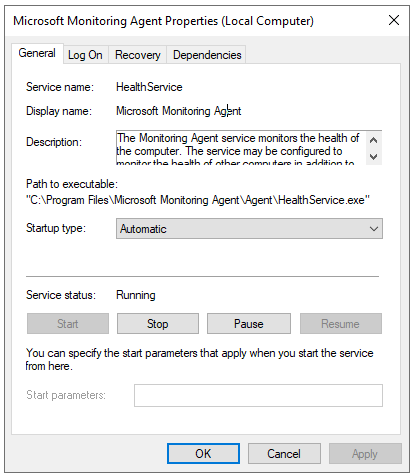
The first thing you need to check if you have an issue with your agent is whether the associated Windows Service „Microsoft Monitoring Agent“ (HealthService) is actually in the „Running“ status. Sometimes, after an unexpected shutdown of your server or sudden cache corruption, the Windows Service might have trouble starting automatically. In such cases, you need to start it manually to ensure the service is running.
- Port and Connectivity
As you are aware, the Windows SCOM Agent needs to be able to communicate to its Primary Management Server over Port 5723:
From:
Operations Manager agents (Windows Agent)
https://learn.microsoft.com/en-us/system-center/scom/plan-planning-agent-deployment?view=sc-om-2022&tabs=Windows#windows-agent
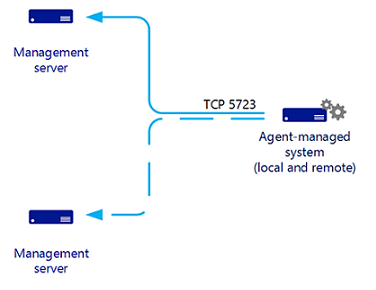
If you are not able to reach the configured Management Server on this port, your agent won’t be able to communicate properly and will be shown as „greyed out“ in the SCOM console. The easiest way to verify this would be to perform a diagnostic test for the connection using PowerShell:
Test-NectConnection -ComputerName <ManagementServer.domain.suffix> -Port 5723
In the case of a successful connection, you should receive an output like that:
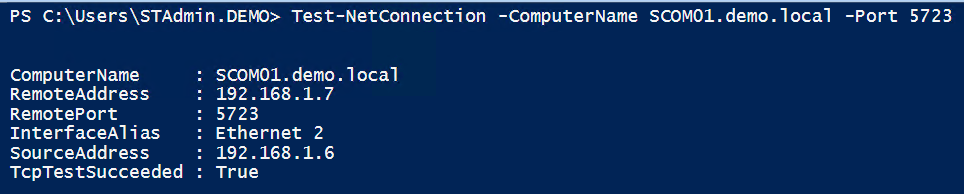
If this is not the case, then you should check for any firewalls that might be filtering the traffic between your agent and its configured Primary Management Server.
- Incorrect Agent configuration
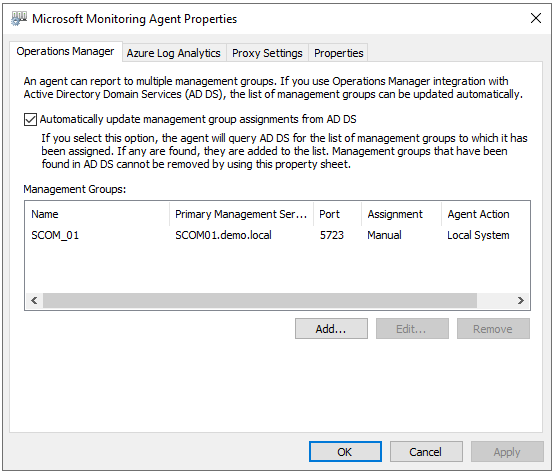
Another common cause of problems with the Windows SCOM agent is incorrect configuration. When installing the agent, regardless of the installation method you use, you must provide the name of the management group and the name of the Management Server. If there is a typo in either of these configurations, your agent will be unable to report to your management group:
Control Panel -> Microsoft Monitoring Agent:
- Authentication and Certificates
Another potential cause of problems with the SCOM agent could be the failing authentication. This is particularly common when the SCOM agent and its Management Server are in untrusted domains or when the agent is in a workgroup. In such instances, configuring certificate-based authentication becomes necessary, which can sometimes be challenging and result in misconfigurations.
The primary challenge here lies in properly configuring the certificates required for mutual authentication. When troubleshooting, it is very beneficial to have a method for verifying whether the certificate meets all critical requirements for successful mutual authentication.
While one could manually inspect all the necessary properties of the enrolled certificates (you need to do this for both authentication endpoints), utilizing a PowerShell-based script (which I usually do) can save you considerable time, with the added advantage of producing easily interpretable output.
The script I use for this purpose is quite old, written some time ago, but it still functions flawlessly. It examines each certificate found in the local Machine ‚Personal‘ store and displays a colored summary of each important property for every certificate. It simply needs to be executed and it delivers output like this:
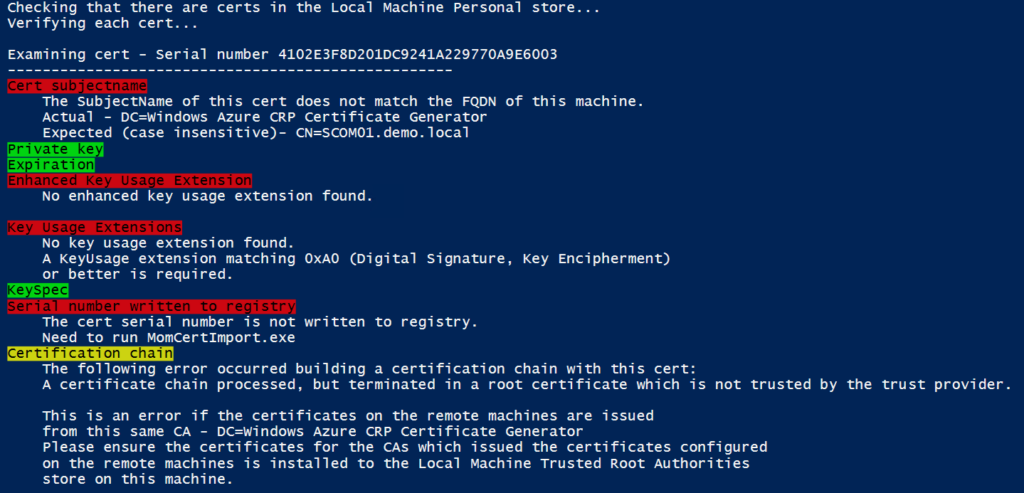
The newest (and also the best) version has been published by Blake Drumm (Huge Thanks to Blake for All his SCOM contributions) here:
SCOM Certificate Checker Script
https://blakedrumm.com/blog/scom-certificate-checker-script/
- Stale agents in the DB
In some rare instances, outdated (also referred to as „orphaned“) agent-related objects can lead to issues when attempting to reintegrate the same agent into the SCOM management group. Kevin Holman has extensively covered this topic in an insightful article:
Deleting and Purging data from the SCOM Database
https://kevinholman.com/2018/05/03/deleting-and-purging-data-from-the-scom-database/
While he presents a solution to address this problem, it’s not recommended following this specific approach is not officially endorsed as „supported.“
Fortunately, Blake Drumm offers a sanctioned method for cleaning up these outdated objects from the database, eliminating the need to access SQL Server Management Studio and directly manipulate the SCOM operations database by executing T-SQL queries. You can find a comprehensive explanation of Blake’s method in his blog article here:
Remove Data from the SCOM Database Instantly – The PowerShell Way!
https://blakedrumm.com/blog/remove-data-from-scom-database/
Some helpful links
Finally, I’ve curated a selection of highly beneficial links that can greatly aid in troubleshooting the SCOM agent. In my view, these resources should be considered essential additions to your link collection dedicated to the topic of SCOM agent troubleshooting.
Fixing troubled SCOM agents(„Old, but Gold“)
https://kevinholman.com/2009/10/01/fixing-troubled-scom-agents/
Troubleshoot gray agent states in System Center Operations Manager
https://learn.microsoft.com/en-us/troubleshoot/system-center/scom/troubleshoot-gray-agent-states
Not monitored and gray agents
https://learn.microsoft.com/en-us/system-center/scom/manage-agents-not-healthy?view=sc-om-2022
Troubleshoot gray agent states in System Center Operations Manager
https://learn.microsoft.com/en-us/troubleshoot/system-center/scom/troubleshoot-gray-agent-states
Troubleshoot agent connectivity issues in Operations Manager
https://learn.microsoft.com/en-us/troubleshoot/system-center/scom/troubleshoot-agent-connectivity-issues
Troubleshoot client agent installation issues in Operations Manager
https://learn.microsoft.com/en-us/troubleshoot/system-center/scom/troubleshoot-client-agent-installation-issues
Events 20012 and 2000 when you use Active Directory integration for agent assignment in Operations Manager
https://learn.microsoft.com/en-us/troubleshoot/system-center/scom/ad-integration-agent-assignment-events-20012-2000
Operations Manager agents with teamed network adapters fail to be discovered and monitored
https://learn.microsoft.com/en-us/troubleshoot/system-center/scom/agents-with-teamed-network-adapters-not-discovered-monitored
Error 25211 when you try to install the System Center Operations Manager agent
https://learn.microsoft.com/en-us/troubleshoot/system-center/scom/error-25211-installing-opsmgr-agent
Deploying Operations Manager agents using the Install-SCOMAgent cmdlet fails with error 80070520
https://learn.microsoft.com/en-us/troubleshoot/system-center/scom/deploy-operations-manager-agents-error-80070520